
Adding an M3U Playlist to IPTV Smarters Pro makes streaming TV in Croatia easy and reliable. This guide will show you what to prepare and how to import a playlist. You can use an M3U URL, a local file, or the Xtream Codes API from some providers.
It covers practical steps and device compatibility for Android, iOS, Fire TV, Windows, macOS, and Smart TVs. It also mentions checking your internet speed for HD or 4K viewing.
The article also includes details from provider notes and user-tested tips. You’ll learn where to find the “Add Playlist” or “M3U URL” option in IPTV Smarters Pro. It also explains what credentials you need for Xtream Codes and alternatives like QR or cloud sync.
We also include a brief nova iptv review angle for readers considering providers. And, we remind you to verify broadcasting rights in IPTV Croatia.
Key Takeaways
- Gather your M3U Playlist URL or local .m3u/.m3u8 file and account details before starting.
- IPTV Smarters Pro supports URL import, local uploads, and Xtream Codes API logins on major devices.
- Test internet speed: at least 10 Mbps for HD and 25 Mbps for 4K streaming.
- Use QR code or cloud sync when available to simplify multi-device setup.
- Confirm provider rights and check nova iptv review feedback when choosing a service in IPTV Croatia.
Understanding IPTV Smarters Pro and playlist formats including M3U Playlist

IPTV Smarters Pro helps viewers in Croatia understand how to organize live TV, movies, and series. It doesn’t host streams itself. Instead, it acts as a player and organizer for content from IPTV providers. Users find it easy to search, mark favorites, and start recordings when allowed by the provider.
What IPTV Smarters Pro is and what it does
IPTV Smarters Pro is a versatile IPTV client app for Android, iOS, Windows, macOS, and many Smart TVs. It supports logins through M3U Playlist URLs and Xtream Codes API credentials. The app needs valid stream links, channel metadata, and EPG feeds from the provider.
Common playlist formats: M3U vs M3U8 vs Xtream Codes API
M3U Playlist files list stream URLs in plain text. Most IPTV client apps accept M3U files. M3U8 is the same format but saved in UTF-8 encoding to keep special characters.
Xtream Codes API uses server URL, username, and password. It often provides richer metadata and EPG integration inside IPTV Smarters Pro. Providers that support Xtream Codes API usually offer a fuller experience than raw M3U Playlist links.
Why format matters for device compatibility in Croatia
Choosing the right playlist formats in Croatia depends on device compatibility and local encoding needs. Smart TV APK stores vary by brand, so installing IPTV Smarters Pro may require sideloading on some models or using Android TV boxes and Fire TV sticks. Test streams in a browser if a Smart TV app is unavailable.
| Format | Main Benefit | Best Use | Notes for Croatia |
|---|---|---|---|
| M3U Playlist | Simple, widely supported | Quick playlist import via URL or file | Use when provider supplies plain lists; check for expired URLs |
| M3U8 | UTF-8 encoding for special characters | Playlists with Croatian diacritics or international names | Prefer when channel names include č, ć, ž, š, đ for correct display |
| Xtream Codes API | Credentials-based, richer EPG and metadata | Users who want integrated EPG and stable channel lists | Confirm provider supports Xtream Codes API and device compatibility |
Device compatibility affects whether you choose an M3U Playlist, M3U8, or Xtream Codes API. Some platforms handle EPG better when using the API. Check IPTV Croatia compatibility and test both playlist formats if unsure. For Nova IPTV review readers, compare playback, metadata, and EPG across devices before settling on a provider.
Preparing everything you need before adding a playlist
Setting up IPTV Smarters Pro is easy with a quick checklist. First, gather your provider details and make sure your subscription is active. Then, pick the device you will use. This makes adding an M3U Playlist or using a playlist URL smooth and quick.

Required items
You need an active IPTV subscription. It should give you a direct M3U/M3U8 link or Xtream Codes API credentials. Have the playlist URL ready and avoid shortened links. If using Xtream Codes API, write down the server URL, username, and password exactly as given.
Check if your subscription is active before starting. Expired access or provider downtime can stop channels from loading. Reading a nova iptv review helps to check uptime, channel accuracy, and EPG support.
Install IPTV Smarters Pro
Install IPTV Smarters Pro on your chosen device. The app is on Google Play for Android, the App Store for iOS, and Windows and macOS stores. For Smart TV or Firestick setup, follow specific steps for each platform. Some devices need sideloading the APK with Downloader or a PC; download from trusted sources.
After installing, open the app. Make sure the main screen shows options like Add Playlist, M3U URL, or Login with Xtream Codes API.
Device notes
- Android installation: use Google Play or a verified APK if the store is not available.
- iOS: install from the App Store and check trust settings if prompted.
- Firestick setup: enable apps from unknown sources only when sideloading and use Downloader for APKs.
- Smart TV install: use the native app store or sideload where supported and permitted.
Internet speed and legal checks
Check your internet speed for streaming. You need at least 10 Mbps HD for reliable HD streams and 25 Mbps 4K for ultra HD playback. Use wired Ethernet for the best stability. If using Wi‑Fi, prefer 5 GHz and a strong signal to reduce buffering.
If streaming stutters, lower resolution or increase bandwidth. Always check legal IPTV use before importing third-party playlists. Make sure the provider has broadcast rights for channels served. Also, check IPTV Croatia requirements for any local rules. Do not share provider credentials beyond allowed concurrent connections; verify multi-device limits to avoid breaching terms.
How to add a playlist using M3U URL in IPTV Smarters Pro
First, open IPTV Smarters Pro on your device. You’ll see several login options. Choose the one for M3U Playlist or login with URL. Make sure to grant network and storage access for smooth import and caching.
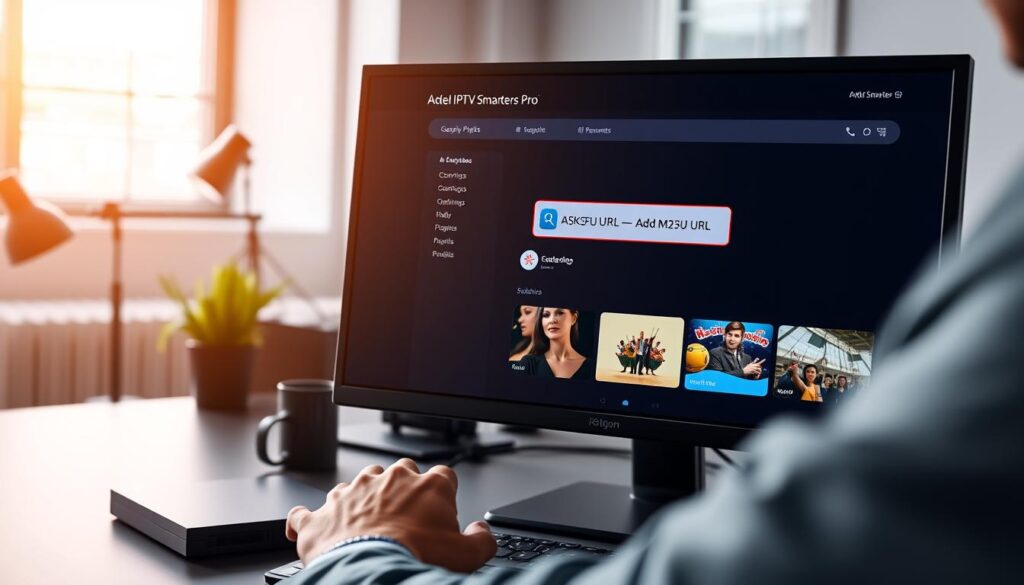
Then, paste the M3U link from your provider into the URL field. Use the full M3U URL, not a shortened one. If your playlist has international characters, use the .m3u8 support link to avoid display problems. Remove any spaces around the URL to avoid parsing errors.
Give your playlist a clear name, like the provider’s name and date. This helps when managing multiple subscriptions in Croatia. Tap add playlist to start downloading and parsing the file.
The loading time depends on the playlist size. Small lists load fast, while large ones take longer. If you face issues, restart the app or device and clear the cache. Try loading the URL in a browser to check if it works.
Here’s a quick checklist for adding a playlist with a URL.
| Step | Action | Tip |
|---|---|---|
| Open app | Select login with URL or M3U Playlist | Update app if option is missing |
| Enter URL | Paste M3U link or .m3u8 support URL | Avoid shortened links and extra spaces |
| Name playlist | Provide a descriptive name | Include provider and date for clarity |
| Add playlist | Tap add playlist to start parsing | Allow time for channel list parsing and load channels |
| Troubleshoot | Restart app, clear cache, test URL in browser | Check for geo-blocking or expired links |
How to add a playlist using local M3U file upload and QR or cloud sync
Adding playlists to IPTV Smarters Pro is easy with local files, QR code import, or cloud sync. Just follow a few steps to upload a local M3U file or use .m3u8 upload. This way, channels will show up in minutes. It’s great for mobile users in Croatia who like local control or offline prep.
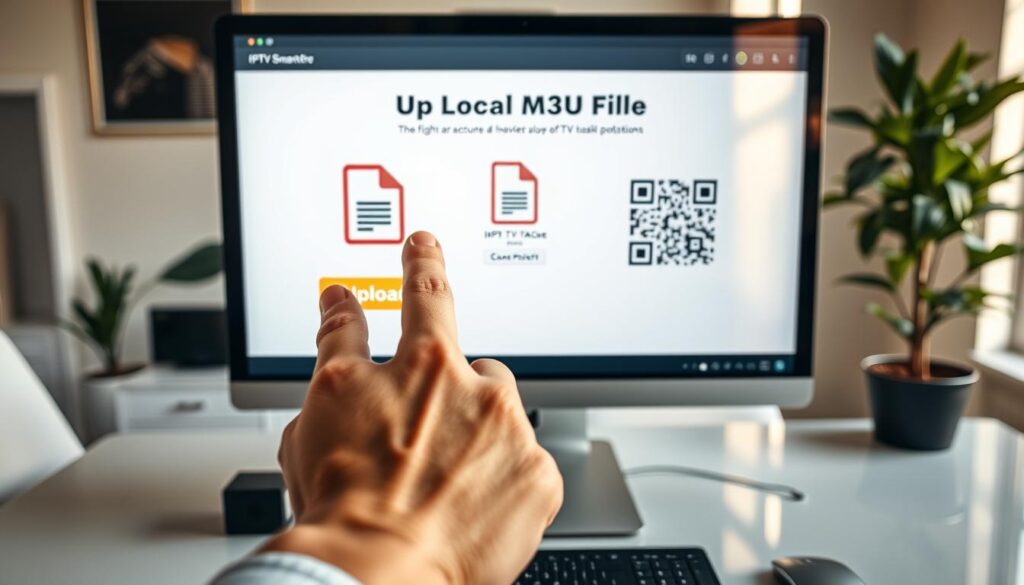
Many devices let you pick a saved M3U Playlist from the device browser or a file manager import. Use “Open with” on Android or the app’s import option when available. If the playlist has non-ASCII characters, choose .m3u8 upload to avoid broken titles and wrong encodings.
QR code import makes it fast on phones and tablets. Scan from the app’s Add Playlist screen to pull a direct M3U Playlist link into IPTV Smarters Pro cloud or the local profile. Make sure the QR-generated link points to a raw M3U file and not a shortened redirect before importing.
If IPTV Smarters Pro lacks direct file import, host the file in cloud storage and use the direct URL. Cloud sync playlists from Dropbox or Google Drive save time when you manage several devices. Some providers offer built-in sync to keep lists updated without repeated uploads.
Good playlist naming helps a lot. Use clear playlist naming that includes provider, country, and date like ProviderName_Croatia_2026-04. Create folders and separate profiles for Live TV, Movies, and Sports so you can organize playlists and find channels fast.
Clean up expired entries and duplicates to keep the app responsive. Use favorites and priority lists so the channels you watch most appear first. Regular housekeeping prevents clutter and speeds up navigation.
| Method | When to use | Key step | Tip |
|---|---|---|---|
| file manager import | Local playlist stored on device | Find file and choose “Open with” IPTV Smarters Pro | Use .m3u8 upload for special characters |
| QR code import | Quick mobile setup | Scan QR from Add Playlist screen | Verify direct M3U link, not a shortener |
| cloud sync playlists | Multiple devices or frequent updates | Link cloud storage or provider portal to app | Keep direct links and authorize access |
| IPTV Smarters Pro cloud | Centralized management | Use built-in cloud feature or provider sync | Name lists clearly and use folders |
| M3U Playlist best practice | General use | Organize playlists with folders and priority lists | Follow playlist naming conventions and archive old lists |
Troubleshooting common issues when adding M3U Playlist or Xtream Codes
Having trouble adding a new M3U Playlist or using Xtream Codes? A few quick checks can solve the problem. First, double-check your server URL, username, and password. Typos, extra slashes, or spaces can cause login failures.
Check subscription and provider status. Make sure your subscription is active and the provider’s servers are working. If login issues persist, reach out to your provider’s support. They can help with login methods, especially for older Xtream Codes setups.
Test a failing M3U URL in a browser. This can help figure out if it’s blocked or expired. Also, check for partial downloads that might cause missing channels. Issues with M3U entries or URLs can prevent channels from showing up.
If you can’t find EPG, many providers use an API. Try switching to API login if possible. Or, ask your supplier for the EPG URL. Clearing the app cache, updating IPTV Smarters Pro, and restarting your device can also help.
Address buffering and stuttering with network fixes. Streaming problems often stem from your network. Aim for at least 10 Mbps for HD and 25 Mbps for 4K. Use Ethernet for the best connection, or 5 GHz Wi‑Fi if Ethernet isn’t an option.
If buffering continues, try lowering the stream resolution or bitrate. Some providers let you choose a lower stream quality. Closing other bandwidth-heavy apps and updating the app can also help with buffering and stuttering.
If you still face issues, check your provider’s uptime and reliability. Look for nova iptv reviews or other assessments when picking a service. Reliable providers help avoid replay issues and missing channels.
Optimizing and managing playlists for best viewing experience in Croatia
Keeping playlists organized makes watching TV smooth and easy. Sort channels by type, mark favorites, and use clear labels. This helps everyone in the house find what they want quickly.
Do small clean-ups often to avoid clutter. This helps reduce buffering on slower connections.
Organize channels into categories like News, Sports, Movies, and Local Croatian. This makes finding shows faster. If the app lets you, make priority lists so your favorite channels show up first.
Combine similar files to avoid duplicates. This saves memory and makes your system run better.
When managing a M3U Playlist, use clear file names with dates. This makes it easy to go back to a previous version if needed. Test new links in a browser before adding them to your playlist. Delete or archive old playlists to keep things organized.
Update playlists often to remove dead links. Many providers update their playlists regularly. Set a weekly reminder to check for updates and refresh M3U entries when needed. This keeps your EPG and channel lists up to date.
Share playlists safely by treating M3U links like passwords. Avoid posting them publicly. Check with your provider about how many devices can connect at once before sharing your login with family. Use separate profiles in IPTV Smarters Pro if your provider supports it to keep your settings and favorites private.
For easy access on multiple devices, use secure cloud sync or tested file transfers. Make sure your cloud storage is protected with strong passwords and two-factor authentication. When sharing, choose read-only options or create extra logins to prevent unauthorized access.
| Task | How to do it | Benefit |
|---|---|---|
| Organize channels | Group by News, Sports, Movies, Local Croatian channels and label by provider | Faster navigation and clearer IPTV Croatia organization |
| Set favorites & priority lists | Mark frequently watched channels and create order where supported | Quick access to key channels and personalized lineup |
| Update playlists & refresh M3U | Test links in a browser, replace dead links, name files with dates | Reliable playback and easy rollback after faulty updates |
| Playlists housekeeping | Merge duplicates, delete expired lists, run weekly checks | Lower memory use and fewer playback errors |
| Share playlists safely | Confirm concurrent connections, use separate profiles, secure cloud | Protected accounts and smoother multi-device access |
| Provider reviews | Read nova iptv review and similar feedback before importing | Choose stable providers and avoid unreliable M3U Playlist sources |
Conclusion
This IPTV Smarters Pro summary covers the main steps to add M3U Playlist content on your devices in Croatia. You can add streams by entering a direct M3U URL or uploading a local .m3u/.m3u8 file. Also, consider Xtream Codes API for tighter integration and reliable EPG support.
Before starting, make sure to install IPTV Smarters Pro and have an active subscription. Also, confirm you have the correct credentials or direct playlist URL.
For smooth playback, aim for at least 10 Mbps for HD and 25 Mbps for 4K. Prefer wired connections over wireless. Keep playlists organized with regular updates.
If you face issues, check your credentials, try a wired link, and test another playlist source. When choosing a provider, read reviews like nova iptv review to check reliability and EPG coverage.
Remember to respect legal boundaries. Make sure your provider has the right to broadcast and follow Croatian laws. These tips will help you keep your IPTV Smarters Pro setup stable and improve your viewing experience.