
This guide, updated 24/04/2026, shows how to set up IPTV on Samsung and LG smart TVs in Croatia. IPTV is a flexible option to cable TV, offering high-definition channels and international streams over the internet. Modern LG and Samsung TVs are great for IPTV, but the experience depends on the app and provider.
We focus on the Smart IPTV app and alternatives like IPTV Smarters Pro. Smarters Pro supports M3U playlists and the Xtream Codes API. For many in Croatia, the Xtream Codes API makes setup easier and includes EPG. However, uploading playlists in a browser requires JavaScript and can be affected by ad blockers.
This guide is for everyday users in Croatia who want easy, step-by-step instructions. It covers Samsung and LG IPTV setup. You’ll get practical tips for choosing a reliable provider, activating the app, and ensuring a stable network for the best viewing experience.
Key Takeaways
- IPTV Smart TV delivers HDTV and international channels via the internet on Samsung and LG TVs.
- Smart IPTV is the main app covered; IPTV Smarters Pro is a strong alternative with Xtream Codes API support.
- A good IPTV provider matters as much as the app for stream quality and uptime.
- Browser uploads need JavaScript enabled and may fail if ad blockers interfere.
- This guide provides step-by-step Samsung IPTV setup and LG IPTV setup advice tailored for Croatia.
What is Smart IPTV and how it works on Smart TVs

Smart IPTV apps make a smart TV a flexible streaming center. They act as an IPTV media player, offering a neat interface for channels, EPG, and VOD. But they don’t provide the streams themselves. Users need to link the player with a content source from a provider to watch live TV or on-demand titles on Samsung and LG sets in Croatia.
Definition and role of Smart IPTV apps
Smart IPTV apps read playlist links or account details and play streams smoothly. Players like Smart IPTV and IPTV Smarters Pro focus on easy navigation, channel grouping, and program guides. They organize content so viewers can browse channels, check program info, and queue recordings when supported.
Difference between a media player app and content providers
An IPTV media player is just a client. The content provider gives the M3U playlist or server access. They handle bandwidth, channel rights, and VOD libraries. It’s like a Blu-ray player and disc: the player displays content, and the provider supplies it.
Common formats: M3U playlists and Xtream Codes API
Two formats are common. An M3U playlist lists channels and streams with a simple URL. It works with almost every IPTV media player and is easy to share from a provider.
Xtream Codes API uses a username, password, and server URL for login. It often offers integrated EPG and smoother setup, making it popular with IPTV Smarters Pro users. Choose based on provider support and the features you need for your iptv smart tv.
Why choose a reliable IPTV provider for the best experience
Choosing the right service is key to a great iptv smart tv experience. The app on your Samsung or LG is important, but the provider is more crucial. They decide on stream quality, uptime, and support.
Provider impact versus app performance
The app is like the remote, and the provider is like the broadcast tower. About ten percent of the viewing experience comes from the app. The other ninety percent comes from the provider.
If the provider has overloaded servers, even the best app can’t prevent stalls.
Key provider features to look for: server speed, channel library, support
Server speed is crucial. Fast, spread-out servers cut down on latency and keep streams smooth. Test the provider’s speed or try their service during a trial period.
A wide variety of channels is important for daily use. Look for a mix of local Croatian channels and international feeds. A big channel library should also have reliable EPG links for correct guide loading.
Good support is key for setup and uptime. Top providers offer 24/7 help via email or chat. They should have clear instructions for Smart TVs and work with Android, iOS, MAG boxes, and popular players.
Regional considerations for Croatia: local channels and language options
In Croatia, make sure the provider offers local networks like HRT, Nova TV, and RTL. Language tracks and subtitle options make family viewing better.
Server locations affect access to regional content and reduce buffering. Choose providers with European or local nodes for better stream stability in IPTV Croatia.
| Feature | Why it matters | What to check |
|---|---|---|
| Server speed | Reduces buffering and improves channel switching | Ask about CDN use, test during peak hours, request bitrate ranges |
| Channel library | Access to local news, sports, and international content | Verify HRT, Nova TV, RTL availability and genres you watch |
| Device compatibility | Makes setup simple across smart TVs and set-top boxes | Confirm support for Samsung Tizen, LG webOS, Android TV, MAG |
| EPG and login methods | Smoother navigation and easier setup with Xtream Codes API | Check for Xtream Codes support and integrated EPG |
| Support and activation | Faster fixes for web activation or JavaScript-related issues | Look for step-by-step guides, responsive chat, and activation help |
Preparing your Samsung and LG Smart TV for IPTV installation
Before you install an IPTV app, make sure your TV is ready. This saves time and prevents playback problems. LG and Samsung TVs are great for smart TV platforms. A few checks will help make setup easier on webOS and Tizen models.
Check OS versions
Look at your TV’s firmware and OS version in settings. LG TVs run webOS, while Samsung uses Tizen. App compatibility might depend on small OS updates. So, check the version before you start the install.
Update firmware and app stores for better compatibility
Update your TV’s firmware to fix streaming bugs and add codec support. After updating, open the app store. This refreshes the list and shows IPTV apps that work with your TV.
Network readiness: Ethernet vs Wi‑Fi and recommended speeds
Choose between Ethernet and Wi-Fi based on your viewing habits. Ethernet is best for stable 4K and Ultra HD streaming. Use Wi-Fi only if a wired connection is not possible, and keep the router close.
Match your internet speed to your content. For SD, 5 Mbps is enough. For HD, aim for 8–12 Mbps. For 4K, you’ll need at least 25 Mbps per stream.
Quick checklist before installing
- Confirm webOS or Tizen is up to date.
- Update TV firmware and refresh the app store catalog.
- Prefer Ethernet for heavy streaming; test Wi‑Fi speed if you must use wireless.
- Enable JavaScript and disable blocking extensions on the device used to upload or activate playlists.
How to install Smart IPTV on LG smart TVs
Setting up Smart IPTV on an LG webOS TV is easy. First, connect your TV to the internet. Then, open the LG Content Store to find the app.
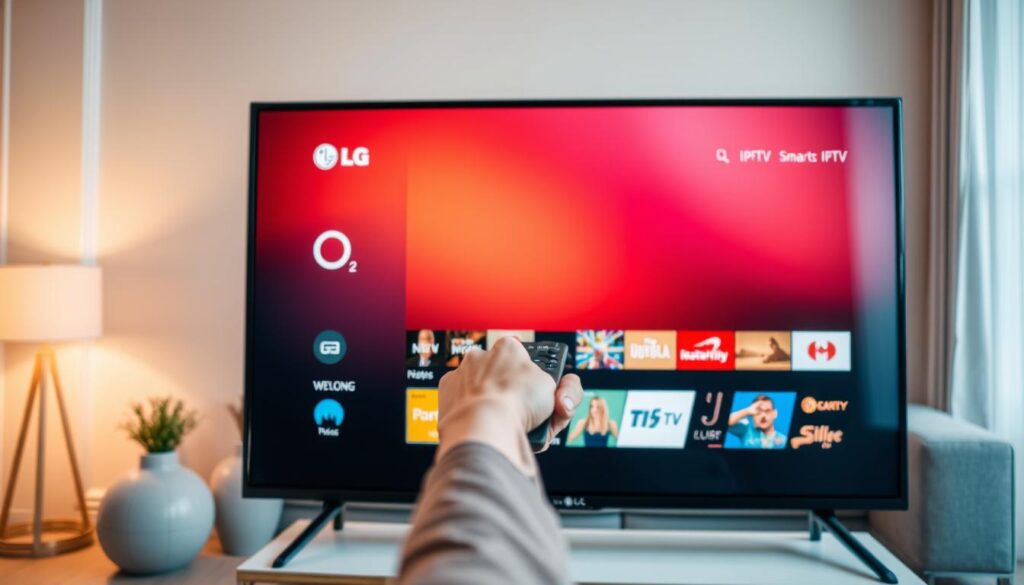
Look for Smart IPTV in the LG Content Store and install it. After it’s installed, launch the app. The app will show your TV’s MAC address on screen.
Write down or take a photo of the MAC address. You’ll need it to link your playlist to your TV.
Now, get your playlist ready from your IPTV provider. Most providers give you an M3U URL. Open a desktop browser and make sure JavaScript is enabled.
Also, turn off ad blockers for the upload page to work right.
Go to the Smart IPTV web upload page. Paste the M3U URL and enter the MAC address as shown on the TV. Click upload and wait for confirmation.
After it’s confirmed, restart the Smart IPTV app. This lets it download channels, EPG, and VOD data.
If you like other players, apps like IPTV Smarters Pro work too. They accept M3U and Xtream Codes. But, Smart IPTV LG is the simplest for direct MAC binding and quick setup via web upload.
How to install Smart IPTV on Samsung smart TVs
Installing Smart IPTV on a Samsung TV is easy. First, open the Samsung Smart Hub. Have your provider details ready. This guide will show you how to search for the app, find the MAC address, and upload your M3U link.
Finding the app in the Samsung Smart Hub
Press the Smart Hub or Home button on your remote. Open Apps and search for Smart IPTV. If it’s available, install and start it. If it’s not there, try IPTV Smarters Pro or check the Smart IPTV Samsung support for other options.
Getting the TV’s MAC address
After installing, open the app. The main screen will show the Smart IPTV MAC. Write it down carefully. Your provider will need this to link your playlist to your TV.
Uploading the M3U link and using save online
On a computer or phone, go to the Smart IPTV playlist upload page. Enter the TV’s MAC and paste the M3U URL from your IPTV service. Check the save online box to store the playlist remotely. Then, press Send. If the browser blocks the upload, enable JavaScript and disable ad blockers.
Final steps on the TV
Restart the Smart IPTV app on your Samsung TV. The app will download channels from the playlist. Wait for the list to fill up and test a few channels. If the app won’t install, try other players or side-load it.
Alternative players and setup methods for smart TVs
Many people with an iptv smart tv look for flexibility when apps are not available. You can pick between a user-friendly app like IPTV Smarters Pro or a simple M3U playlist upload. Both options work on Samsung and LG TVs, but the experience can vary.
To start with IPTV Smarters Pro, first open the TV app store. Then, search for IPTV Smarters Pro and install it. You can connect using the Xtream Codes API or a manual M3U playlist.
For the Xtream Codes method, you need a profile name, username, password, and server URL from your provider. After adding the account, wait a few seconds for channels, EPG, and VOD to show up.
Choosing the Xtream Codes API gives you an integrated electronic program guide and a smoother login. It often means faster navigation and reliable EPG data compared to M3U files. The API also keeps channel groups and VOD organized.
If the app store blocks the app, you can try side-loading IPTV apps or USB installation. Smart IPTV and some third-party players offer USB install guides for restricted regions. Side-loading requires enabling developer or USB modes and following the developer’s steps carefully.
Make sure to enable JavaScript in web-based activation pages and disable ad blockers when uploading playlists or authenticating. These steps prevent common upload failures and speed up activation. Both Xtream Codes and M3U playlist setups benefit from a clean browser upload flow.
In Croatia, consider local channel availability when choosing between an M3U playlist and an Xtream Codes setup. The API method usually keeps regional EPGs and language labels correct. Manual M3U uploads might need occasional edits to match local schedules.
Optimizing your IPTV smart tv performance
For a smooth viewing experience on an IPTV smart tv, focus on the network, TV firmware, and router tweaks. Making small adjustments can greatly reduce buffering and keep channels stable. Start with the basics before looking for more complex solutions.
Why a wired link often wins for high-bitrate video
Opt for a direct Ethernet connection when you can. Ethernet vs Wi-Fi is more than just convenience. Wired connections offer more consistent speeds, especially for heavy content like 4K streaming. This reduces the chance of packet loss that causes video stutters.
What internet tiers match SD, HD, and 4K
Choose an internet plan that matches your viewing needs. For standard definition, 5 Mbps per stream is enough. For HD, aim for 8–10 Mbps. For 4K streaming, you’ll need at least 25 Mbps per stream for a smooth experience.
Router placement and basic home network checks
Place your router in the center of your home. Avoid placing it near metal or concrete barriers. Keeping your TV and router firmware updated can also improve app stability and network performance on Samsung and LG models.
Using QoS settings to prioritize the TV
Use QoS settings on your router to give IPTV traffic priority. You can also prioritize the TV’s IP or MAC address. This is especially helpful when many devices are connected during busy times.
Cutting wireless interference for better streams
If you must use Wi-Fi, switch to the 5 GHz band for compatible devices. This avoids the crowded 2.4 GHz channels. Limit devices, choose a clear channel, and place Wi-Fi extenders away from the router and TV.
Practical tips for uploads and activations
When uploading playlists or activating services from a phone or PC, ensure a stable connection. Also, use a browser that supports JavaScript. A shaky upload can lead to app errors and corrupted activations.
By following these steps, you’ll enjoy fewer interruptions, better picture quality, and a more consistent IPTV smart tv experience.
Troubleshooting common Smart IPTV issues
Small glitches can interrupt viewing on an iptv smart tv. This guide helps fix frequent errors and get channels back fast. Follow each step in order and test after every change.
Fixing Check URL error and M3U errors
First, check the M3U link from your provider. A single mistake or extra space can cause a Check URL error. Copy the URL again, paste it into a plain text editor, remove spaces, and then paste into Smart IPTV.
If the error persists, make sure your subscription is active. Also, confirm the MAC address on the provider page matches your TV’s MAC. Test the M3U link in VLC on a desktop to see if it loads.
Resolving app loading or “Loading” hang
When the app stays on Loading, clear the playlist on Smart IPTV and re-upload the M3U link. Restart the Smart IPTV app and reboot the TV if needed.
Check your router and internet connection. For 4K channels, use Ethernet. If using IPTV Smarters Pro with Xtream Codes API, check your username, password, and server address. Wait a few seconds for the profile to populate.
Dealing with JavaScript browser issues during activation
If the activation page warns about JavaScript, enable it in your browser settings. Disable ad blockers and extensions that block scripts.
Try a different browser like Google Chrome or Firefox, or upload from another device. Network restrictions at cafes or public Wi-Fi can block uploads. Test from a home network or mobile hotspot if uploads fail.
Quick checklist
- Verify the M3U URL for spacing and missing characters.
- Confirm MAC address and active subscription with the provider.
- Clear and re-upload playlists, then restart app and TV.
- Enable JavaScript and disable blocking extensions when using web upload.
- Switch networks or browsers if JavaScript browser issues persist.
Security, activation notes, and best practices
Setting up IPTV on Samsung or LG TVs is easy if you remember a few key points. First, keep the Smart IPTV activation separate from your provider subscription. Smart IPTV has a trial period and then asks for an app activation fee. This fee is different from the monthly charges you pay to your provider.
Think of M3U links and Xtream Codes as passwords. Keep M3U URLs, usernames, passwords, and server addresses safe. Don’t share these details online or post screenshots that show private information.
Use a secure network when uploading playlists or entering credentials. Stay away from public Wi-Fi for activation. Instead, use a home Ethernet connection for the initial setup. Also, make sure your TV’s firmware is updated. This helps protect your TV and ensures it works well with provider services.
If you need to contact IPTV support, be clear and quick. Tell them your TV model, OS version, TV MAC address, and any error messages. Mention if you used an M3U link or the Xtream Codes API. Also, report any issues with browser uploads.
Before reaching out to support, check your provider subscription status and server speed. Make sure your service is active. If streams stutter, ask support to check the server load. Keep your activation and provider invoices handy for quick verification.
Lastly, save your activation details and secure credentials in a password manager. This is useful when you switch TVs or need to re-activate after a reset. Clean up any unused accounts and revoke access if you no longer need a provider or device.
Conclusion
Setting up an iptv smart tv on Samsung and LG models in Croatia is a smart move. It lets you watch more than just cable TV. Just follow the setup steps, keep your firmware up to date, and use the right TV MAC and M3U link or Xtream Codes credentials.
Choosing a good provider is key, just like the app you pick. Look for providers with fast servers, lots of channels, and quick support. This helps avoid buffering and downtime. If Smart IPTV isn’t perfect, try IPTV Smarters Pro for better Xtream Codes API and EPG management.
Make sure your network and browser are ready. Use Ethernet for 4K streams and have enough bandwidth for HD and SD. Also, enable JavaScript and disable blockers when uploading playlists. Keep your login and M3U/Xtream details safe and give clear MAC and error info to support when needed.
In short, with updated firmware, a great IPTV provider, the right setup, and a stable network, you’re set. A little prep now means smooth streaming on Samsung and LG TVs for years.