

If Nova IPTV isn’t working for you, it’s not just a simple fix. Buffering, freezing, and activation issues can be tough to solve. In 2026, many people searched for ways to stop IPTV buffering.
Simple fixes like changing apps, restarting your router, or using a VPN might help. But they often don’t solve the real problem.
Streaming stability with Nova IPTV depends on many factors. Your device, internet, router settings, and the streaming server all play a role. Live services like Nova IPTV 2026 for Croatia are especially sensitive.
Unlike Netflix, live streams can’t preload large segments. Even with fast internet, problems like packet loss or server overload can cause issues.
This article will show you how to check your setup beyond just speed. Use Ethernet, test during busy hours, try different apps, and lower stream quality. Also, check your router settings. Make sure you’re on the official novaiptv.to domain and that service activation went smoothly before reaching out for help.
Key Takeaways
- Nova IPTV issues often stem from multiple weak links: device, router, connection, or server.
- Live IPTV is more sensitive than VOD; buffering can occur even with high speeds.
- Start with Ethernet, restart devices, and test during peak hours for accurate diagnosis.
- Use VLC or MX Player to isolate app problems and verify content-specific issues.
- Verify official service details at nova-iptv.net and check activation status before escalating.
Quick checklist to try first for Nova IPTV buffering and activation
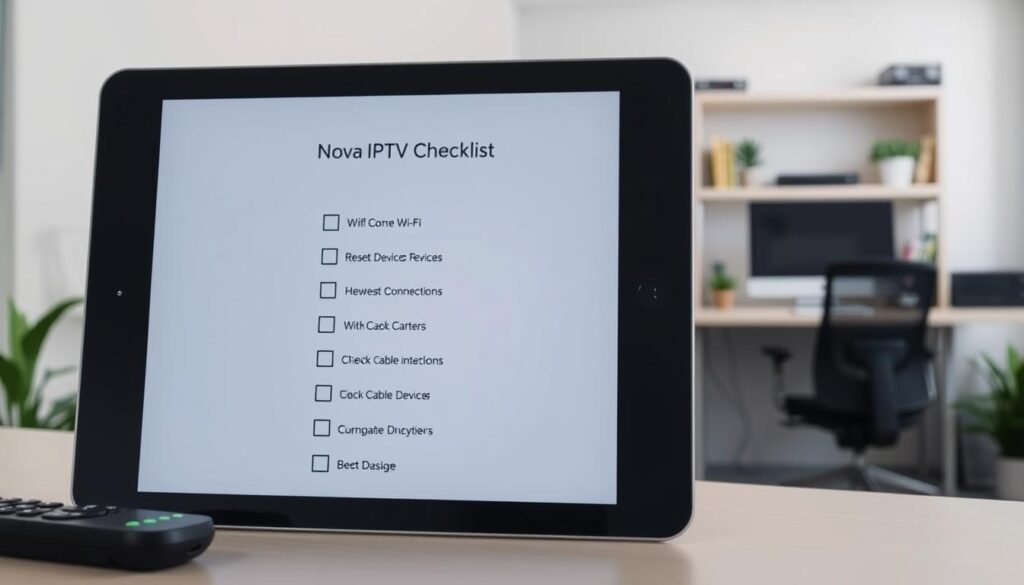
Start with a few quick checks that solve most playback problems. These Nova IPTV quick fixes let you see whether the issue is local or on the service side. Keep steps short and test after each change to isolate the cause.
Restart and simple fixes that often work
Close the IPTV app and reopen it. Power cycle your streaming device by unplugging it for 10 seconds, then plug it back in. Restart your router to clear transient network hiccups.
Switch from Wi‑Fi to an Ethernet cable when possible. Lower stream quality temporarily to reduce buffering. Refresh playlists after updating credentials to avoid missing channels.
Network basics to verify instantly
Run a speed test on the streaming device. Look for stable download speed and low jitter. If speed dips during peak hours, test again between 5 PM and 10 PM to check congestion.
Disable unused devices and background downloads on the LAN. Check for ISP traffic shaping or “nanny” settings that may throttle streaming. Re-enter login details carefully to prevent extra spaces that block novaiptv.to activation.
Use an alternate player like VLC or MX Player to rule out app-specific faults. Keep your transaction ID ready if activation delays require support contact. Follow this nova iptv checklist to track each quick action and note results.
| Action | Why it helps | How to test |
|---|---|---|
| Restart app and device | Clears memory leaks and temporary errors | Close app, reboot device, play a channel |
| Switch to Ethernet | Reduces packet loss and latency | Plug cable, run speed test, play live stream |
| Lower stream quality | Reduces bandwidth demand during peaks | Select lower resolution, observe buffering |
| Refresh playlist / re-enter credentials | Fixes missing channels and activation issues | Update M3U/Xtream entry, refresh, check channels |
| Disable background devices | Frees bandwidth for streaming | Disconnect other devices, test playback |
| Use alternate player | Isolates app vs. stream issues | Install VLC or MX Player, load same stream |
| Check for ISP throttling | Identifies provider-side slowdowns | Run multiple speed tests at different times |
Understanding why buffering, freezing, and lag happen with IPTV
Streaming problems can look similar but come from different places. In Croatia, many viewers face nova iptv buffering, stalls during live sports, or slow channel changes. Knowing the cause helps find the right fix faster.
Differences between buffering, freezing, and lag
Buffering is a short pause while the player fills its buffer. The video resumes once enough data arrives. nova iptv buffering often shows as a spinning wheel or brief drop in picture quality.
Freezing is a more complete stop of audio and video. Freezes usually point at device decoding faults or server instability rather than temporary network delays. When a stream freezes completely, restarting the app or switching the player can reveal the cause.
Lag means delayed responses to remote commands like channel changes or rewind. IPTV lag causes include high latency and jitter. Lag makes zapping feel sluggish even if the picture plays fine after a delay.
Key technical causes
Packet loss breaks the stream. Missing packets force re-transmits or long waits for data, which creates buffering and freezing. Jitter—variation in packet arrival time—hurts live TV the most.
Latency spikes add delay between requests and server replies. ISP traffic shaping can throttle IPTV streams during peak hours and trigger nova iptv buffering causes concentrated on certain routes.
Server or CDN overload shows up as channel-specific problems. If one channel buffers but others do not, provider-side load is likely. Nova IPTV uses adaptive bitrate and regional mirrors to cut this risk, yet peak events still stress the system.
Wi‑Fi instability and device limits affect playback. Older smart TVs, underpowered Android boxes, or congested Wi‑Fi lead to freezes and slow response. Testing the same stream on VLC or MX Player can help decide if the issue is the device or the network.
| Symptom | Most likely cause | Quick check |
|---|---|---|
| Short pauses (buffering) | Packet loss, short speed drops, ISP shaping | Run a speed and packet loss test; try wired connection |
| Full stop (freezing) | Device decoding fault, server crash, corrupted stream | Restart app or device; test same channel on another device |
| Slow channel changes (lag) | High latency, jitter, overloaded CDN | Measure latency and jitter; compare regional mirror if available |
| Channel-specific buffering | Provider-side load or source bitrate | Check other channels; note same pattern across devices |
| Issues during live events | High viewer count, high bitrate streams (4K, sports) | Try lower quality; watch a recording to compare |
How to test your home network for real IPTV stability
Check your network during peak evening hours to see how it behaves under load. Run tests from the actual streaming device when possible. A phone or laptop can show baseline numbers, but a Nova IPTV speed test run on a Fire TV, Android TV, or Smart TV gives clearer results for real playback.
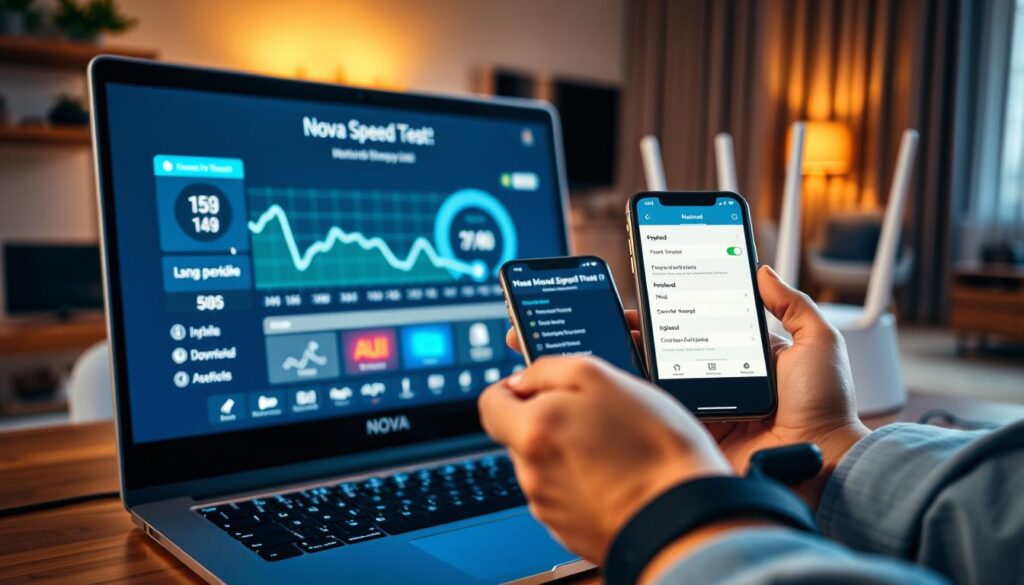
What to measure beyond simple speed
Start with latency. A low, steady ping matters for channel switching and live feeds. Next, measure jitter. An IPTV jitter test aims for values under 20 ms to avoid micro‑stutters. Track packet loss; any loss above 1% can cause visible glitches.
Watch for fluctuation. A connection that falls from 100 Mbps to 10 Mbps is worse than a steady 25 Mbps. Compare Ethernet against 5 GHz Wi‑Fi on the same device to spot radio or cabling issues.
Tools and practical tests
Use continuous ping and traceroute to reveal routing instability or ISP throttling. Run the nova iptv network test at the same time your household watches TV to simulate real conditions. Try a quick VLC or MX Player stream on the device to confirm playback outside the Nova app.
Test multiple devices to separate device faults from provider issues. If the Smart TV shows buffering while a wired Android box is stable, focus on the TV or its Wi‑Fi. Keep headroom for households with several streams and check novaiptv.to troubleshooting guides if provider specifics appear relevant.
| Metric | What to look for | Quick test |
|---|---|---|
| Latency (ping) | Under 30 ms to streaming server for smooth channel changes | Continuous ping to gateway and to public server |
| Jitter | Under 20 ms for stable live streams | IPTV jitter test via app or ping variance |
| Packet loss | 0–1% acceptable; above 1% causes freezes | MTR or ping with loss reporting |
| Bandwidth | Consistent throughput matching stream bitrate plus headroom | Nova IPTV speed test on the streaming device |
| Wi‑Fi vs Ethernet | Compare to find interference or router placement issues | Run same tests on same device via both links |
Wi‑Fi and router fixes that often eliminate Nova IPTV buffering
Small tweaks to your network can solve streaming issues quickly. Start by checking signal strength, interference, and router settings. If switching to Ethernet fixes the problem, you’ve found the issue.
Here are some practical steps to try today. These tips come from real-world tests and advice from router makers and streaming services. Try one change at a time to see what works.
Improve Wi‑Fi reliability
Put the router in a central, high spot away from heavy furniture and metal. Walls, concrete floors, and microwaves can weaken the signal and cause buffering.
Use 5 GHz for devices close to the router for better performance. Switch to 2.4 GHz for longer range. For big homes, consider a mesh system or add access points to avoid wireless hops.
Look for nearby networks and Bluetooth devices. Change channels to reduce interference. Turn off features that slow down traffic while testing.
Router configuration and upgrades
Update your router’s firmware and reboot it during troubleshooting. A fresh start can clear up CPU tasks that drop frames.
Enable Quality of Service (QoS) to prioritize your streaming device. Proper novaiptv.to QoS settings keep playback smooth. Set a higher priority for your streaming device if your router supports it.
Consider a new dual-band or tri-band router for multiple HD streams. Older routers may struggle with video and web traffic. Upgrading can solve issues that tweaks can’t.
| Problem | Quick fix | When to upgrade |
|---|---|---|
| Weak Wi‑Fi in one room | Move router, switch to 2.4 GHz, or add an access point | Home has many rooms or thick walls |
| Frequent buffering during peak hours | Enable novaiptv.to QoS and limit background uploads | Multiple concurrent HD streams |
| Buffering clears when Ethernet used | Use Ethernet for main player or upgrade wireless radio | Router CPU or wireless chipset is old |
| Interference from neighbors or appliances | Change channel, use 5 GHz, relocate router | Dense apartment building or many IoT devices |
Keep a checklist handy: test Nova IPTV Ethernet vs Wi‑Fi, toggle QoS settings, and apply fixes. Small changes can fix playback issues without needing support.
Device-specific troubleshooting for Smart TV, Firestick, and Android boxes
Different devices act differently when streaming live TV. First, find out if the problem is on one device or many. This helps decide if you need to fix the network or the device itself.
Smart TV tips
Many Smart TVs from Samsung and LG have limited RAM and CPUs. They might struggle with HD or 4K streams and busy sports feeds. To improve, update the TV firmware and close apps running in the background.
Try using a lightweight player like IPTV Smarters or TiviMate instead of a heavy native app. Lowering the stream resolution to HD can also help when buffering happens. If problems continue, use an external device for playback.
These steps are simple fixes for Nova IPTV Smart TV issues without needing to make big changes.
Testing playback players
Try using VLC or MX Player instead of the default app to see if it’s the player causing the problem. Play multiple VOD files to see if it’s a single channel or all streams that are affected. This helps figure out if the TV hardware or the app is causing the interruptions.
Fire TV Stick recommendations
The Amazon Fire TV Stick is popular in Croatia but has limited CPU and RAM. Frequent pauses and rebuffering often mean the app cache or overheating is the issue. Clear the app cache, restart the device weekly, and remove unused apps to free up memory.
Use an Ethernet adapter for wired connections when possible. Lowering the resolution can also reduce nova iptv Firestick buffering during busy times. Install optimized players and avoid running background downloads while streaming.
Android TV box guidance
Budget Android boxes may struggle with low RAM or old system images. Signs include buffering despite fast internet and repeated stream restarts. Check the device temperature and close unused processes.
If issues persist, follow nova iptv android box tips: update the box firmware, try alternative players, and test wired Ethernet. Consider upgrading to a more powerful Android TV or using an external streamer when persistent limits show.
Device troubleshooting checklist
| Device | Quick fixes | When to upgrade |
|---|---|---|
| Samsung/LG Smart TV | Update firmware, close apps, use IPTV Smarters or TiviMate, lower resolution | Persistent lag on HD/4K or app crashes |
| Amazon Fire TV Stick | Clear cache, restart weekly, use Ethernet adapter, install optimized players | Constant nova iptv Firestick buffering despite fixes |
| Android TV Box | Update firmware, test with VLC/MX Player, close background apps, use wired connection | Frequent app crashes, stream restarts, or overheating |
| External streamer (NVIDIA Shield, Apple TV) | Use native apps, keep system updated, prefer wired LAN for live sports | Need reliable HD/4K performance for live events |
When nothing works
Collect logs, note which devices show issues, and try novaiptv.to device troubleshooting steps such as player swaps and wired testing. This prepares you and the provider for a faster resolution.
Troubleshooting Nova IPTV activation and missing channels
First, check your purchase and email. Make sure you’ve ordered on novaiptv.to and have the Xtream or M3U details. Put in the novaiptv.to credentials into your IPTV player and refresh the playlist. Activation usually happens quickly.
If it says nova iptv activation pending, wait a bit. Keep your transaction ID ready. It helps support fix issues faster.
Activation checklist
Double-check the Xtream or M3U string in your email. Mistakes can happen when copying. Try reinstalling or updating the IPTV app, then enter the credentials again and refresh the playlist.
Try the same account on another device. Use VLC or MX Player on a laptop or phone to see if it’s a device problem. Also, do a speed test on the streaming device to check for bandwidth or ISP issues.
If problems keep happening, reset the router and the streaming device. Check if you’re using a wired or Wi-Fi connection. Many times, a full reboot and a new network connection solve the problem.
Fixes for missing channels or delayed activation
For nova iptv missing channels, start with a playlist refresh in your IPTV app. Smart IPTV and most Xtream-compatible players work with M3U and Xtream Codes. If channels still don’t show, try reinstalling the app.
If problems continue, collect details before reaching out to support. You’ll need your transaction ID, device model, app name and version, error screenshots, and when you tried to activate. Send this info via Telegram, WhatsApp, or email to get help faster.
Make sure no local ISP nanny or firewall is blocking streams. Test on mobile data to see if it’s a provider issue. If other devices work but one doesn’t, check device settings and app caches.
How live sports and peak events affect Nova IPTV performance
Live sports and big events change how streaming works. High-motion content needs steady delivery and higher bitrates. When millions watch at kickoff, servers and CDNs get very busy.
Viewers in Croatia often see Nova IPTV sports buffering at match start.
Peak demand spikes happen in the evenings and during major tournaments. The 5 PM to 10 PM window is especially busy. Internet service provider shaping or local congestion can make things worse during these times.
Why live sports cause more buffering
Live sports stream in real time with little pre-buffering. Fast camera pans and replays need consistent throughput. When CDN nodes are saturated, packet drops rise and buffering appears more often on fast-motion channels.
Using a VPN may bypass ISP throttling but can add latency and make playback worse.
Mitigations for live events
- Prefer Ethernet over Wi‑Fi to cut packet loss and jitter.
- Reduce simultaneous streams on your home network during big matches.
- Temporarily lower resolution to ease bitrate demands when you see Nova IPTV sports buffering.
- Check whether multiple devices show the same issue; if they do, the problem likely sits with the provider or CDN.
- Use players like VLC or MX Player for testing streams; this can reveal whether the app or the stream causes problems.
Practical checks during an event
Do a speed test from the streaming device while the match runs to capture real-time metrics. Watch device temperature; overheating can throttle playback. If only one channel buffers at kickoff, server-side load or CDN routing is likely responsible for nova iptv live events interruptions.
Provider-side work and what users should expect
NOVA IPTV invests in regional mirrors and server tuning to reduce latency and speed up channel changes. Still, scaling limits surface during large global broadcasts. For viewers of Nova IPTV live sports Croatia, the best short-term fixes are local: wired connection, fewer devices, and lower resolution until provider capacity improves.
Server-side and provider checks before escalating to support
First, check if the problem is local. If different devices and wired connections have the same issue, it might be a server or CDN problem, not your home network.
Buffering on certain channels might mean the stream is too busy. Look at the novaiptv.to status and official Telegram for updates. Try the channel on VLC or MX Player to see if it’s an app problem.
Before you contact support, gather some quick test results. Do a speed test, ping a nearby server, and run a traceroute. Note any packet loss and jitter during the problem.
Do some basic checks on your nova iptv provider. See if all channels buffer or just a few. Check if Ethernet and Wi-Fi have the same issue. Try a different DNS like Google or Cloudflare to see if it’s a resolver problem.
When you contact support, have all your information ready. Include your purchase email, transaction ID, device details, app info, error screenshots, and when the problem started.
Also, list what troubleshooting steps you’ve already taken. Mention if you refreshed the app, tried Ethernet, or tested on another device. This helps support avoid giving you the same advice twice.
Give support all the details they need. Tell them if your old provider worked, what media player you tested, and if you checked router parental controls. Share your speed test results from the streaming device.
Use the provider’s channels wisely. NOVA IPTV support is on Telegram, WhatsApp, and email at support@novaiptv.to. Share clear logs and test results. This helps techs quickly identify if the issue is with your account, server, or network.
Security, official domain checks, and avoiding fake Nova IPTV sites
When you get IPTV in Croatia, safety is key. Scammers make fake sites with low prices and lots of channels. Before you pay, make sure the site is real and safe.
First, check the URL in your browser. The real site is https://novaiptv.to/. Use novaiptv.to verification to see if the site looks right. A real site has clear prices and ways to contact them, like Telegram and email.
Watch out for scams by looking for HTTPS, correct spelling, and matching logos. Don’t trust sites that don’t check providers. Many fake sites have wrong prices, bad streams, or no help.
Don’t share your login or pay on sites that aren’t verified. If a site asks for weird payments or unclear refunds, it’s a warning sign. For safety, contact support on the official site and check any deals through their channels.
Use app stores for apps and try trials before you buy. Keep your antivirus and browser safe. In Croatia, knowing about nova iptv security helps avoid scams and protect your money.
How to verify you’re on the official site
Make sure the URL is https://novaiptv.to/. Check the FAQs, account links, and support email or Telegram on that page. Make sure the prices and plans match what support says.
- Look for HTTPS and correct domain spelling.
- Match contact channels to those shown on novaiptv.to verification.
- Verify any reseller by asking official support to confirm the offer.
Risks of unofficial domains and how to protect yourself
Fake sites often have bad streams, wrong offers, and no help. These problems can risk your payment and account info. Reporting fake sites helps keep everyone safe.
If you’re unsure, don’t pay. Contact support on the official site’s email or Telegram. Use safe payment methods and keep all your messages.
| Risk | How to spot it | Quick action |
|---|---|---|
| Fake pricing or hidden fees | Vague plan descriptions, inconsistent totals at checkout | Compare with Nova IPTV official domain and request clarification from support |
| Unstable or missing streams | Frequent disconnects, poor channel lists, no trial option | Test trial on official dashboard, report problems to nova iptv security Croatia contacts |
| Fake support contacts | Nonfunctional Telegram links, private payment-only chats | Verify contact channels via novaiptv.to verification and use official email |
| Phishing and credential theft | Requests for login reuse, requests for personal documents | Never reuse passwords, avoid sharing documents, change passwords if compromised |
Conclusion
This Nova IPTV conclusion wraps up the practical steps for Croatian households to get back to smooth streaming. Finding the bottleneck — device, network, router, or server — is key. Prioritize consistent throughput with low latency, low jitter, and minimal packet loss.
For a reliable nova iptv summary, test on multiple devices and players like Smart IPTV, TiviMate, or VLC. Use Ethernet where possible and run speed tests from the streaming device. Check router settings such as QoS. During peak hours, measure performance again to see provider-side load.
Verifying novaiptv.to Croatia resolution and following server guidance reduces activation delays and missing channels. Before contacting support, gather your transaction ID, email, device details, and results from alternate players and network tests. These simple checks speed diagnosis and often solve issues without escalation.
With these steps, you can move from troubleshooting to stable viewing quickly. Keep Nova IPTV working across living rooms in Croatia.